Import references directly from dozens of databases. Most sources implement Direct Export into reference managers in similar ways.
Examples of Direct Export integrations.
Export directly from Primo
Perform a search in Primo.
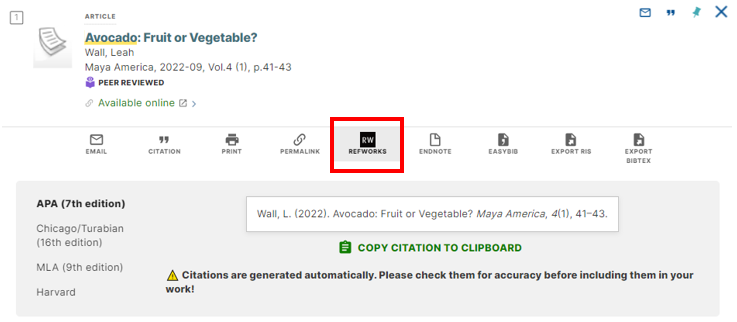
Export one record:
Click on Cite icon “ or the Actions icon … and click on RefWorks.

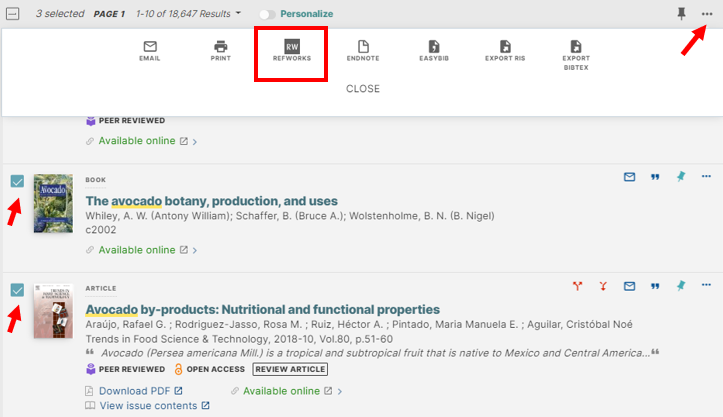
Export multiple records:
Select the records to export, click Actions icon … and click on RefWorks.
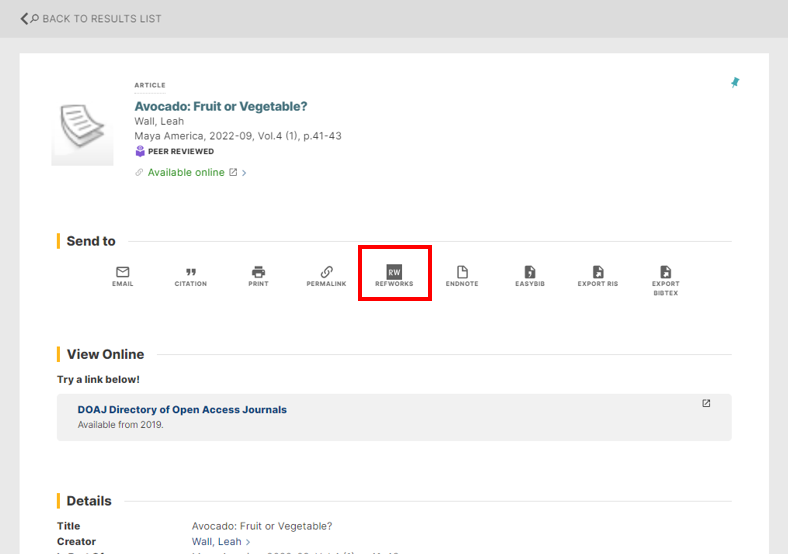
Export from the record page:
Click on RefWorks in the Send to section.
A new browser tab will open. If logged in, follow the prompts to complete the import. If not logged in, log in and follow the import steps.
Export directly from ProQuest
Export one record:
Click on the Cite icon or All Options icon
Cite modal: Click on RW RefWorks icon.
All save & export options: Click on RW RefWorks icon.
Click continue in Export/Save modal.
A new browser tab will open. If logged in, follow the prompts to complete the import. If not logged in, log in and follow the import steps.
Export from search results:
Select search results to export, click on Cite icon. On modal, click RefWorks.
Click continue in Export/Save modal.
A new browser tab will open. If logged in, follow the prompts to complete the import. If not logged in, log in and follow the import steps.
ProQuest page design may vary based on institution’s preferences settings.
Exporting directly from Summon
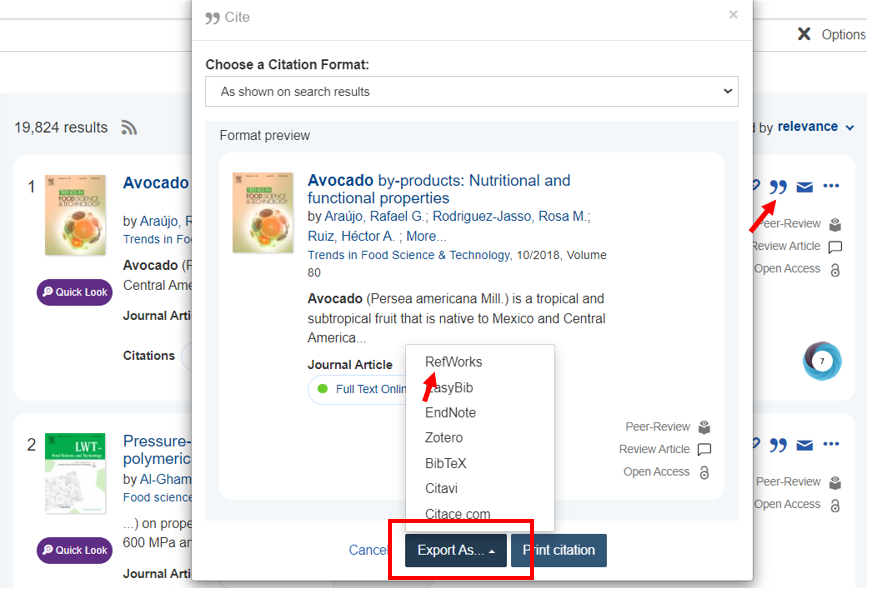
Export one record:
Click on Cite icon “ and click on Export As and select RefWorks.
Export from search results:
Save the records, click on Saved Items icon. On Saved Items page, click Export to and click on RefWorks.
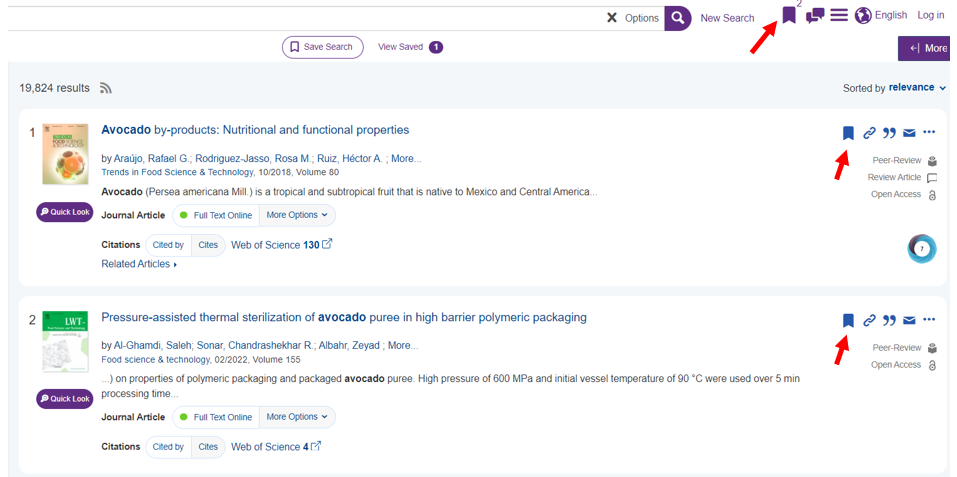
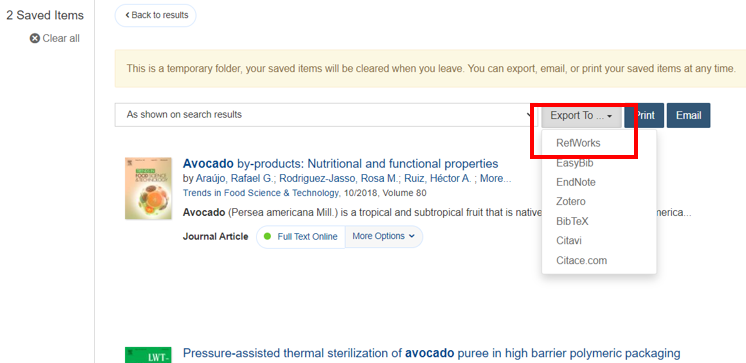
A new browser tab will open. If logged in, follow the prompts to complete the import. If not logged in, log in and follow the import steps.
Summon page design may vary based on institution’s preferences settings.
Exporting directly from Web of Science
Select references on search results page, click Export, click RefWorks.
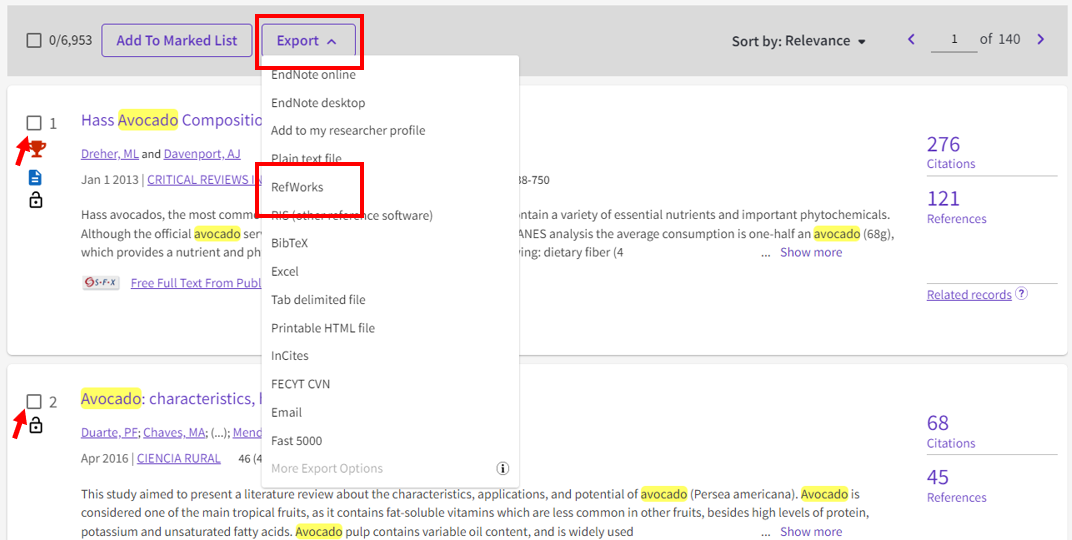
Click Export on modal.
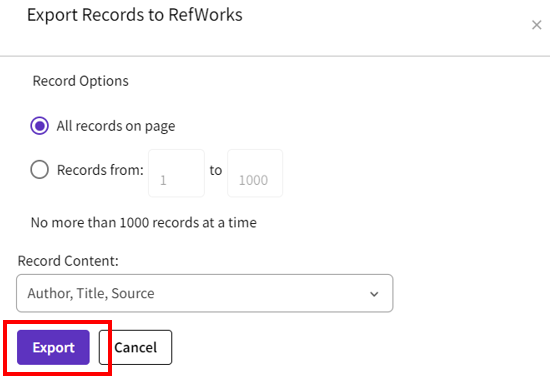
To export from a full record page, select Export and then RefWorks.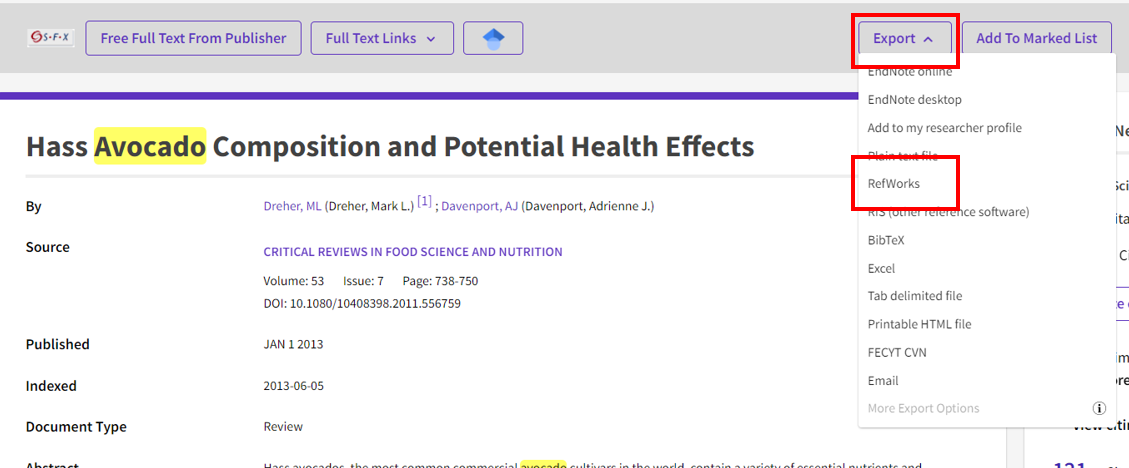 RefWorks Export from Web of Science – record page export
A new browser tab will open. If logged in, follow the prompts to complete the import. If not logged in, log in and follow the import steps.
Web of Science view may vary based on institution’s preferences settings.
Exporting from Ebook Central
Click on Cite Book to open Citation modal. Click on RefWorks.
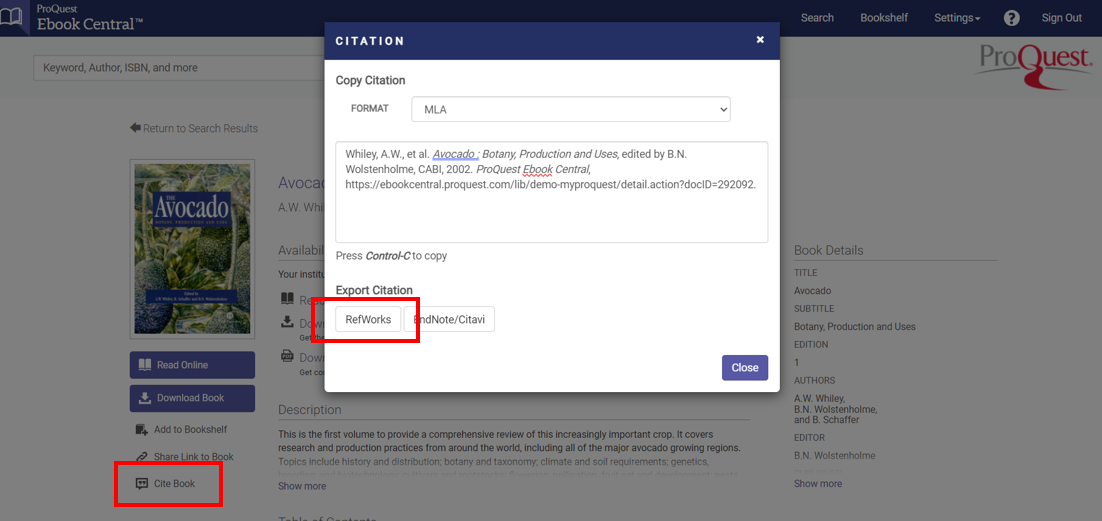
A new browser tab will open. If logged in, follow the prompts to complete the import. If not logged in, log in and follow the import steps.
Ebook Central view may vary based on institution’s preferences settings.
Exporting directly from Google Scholar
Import into RefWorks
Click on Cite or, if configured, click on Import into RefWorks.
Click on RefWorks in Cite modal.
A new browser tab will open. If logged in, follow the prompts to complete the import. If not logged in, log in and follow the import steps.
Configure Import into RefWorks setting
Click on Settings link on the Google Scholar menu
Select Show links to import citations into, and click on RefWorks.
Click Save.
To retain settings, you must turn on cookies.