RefWorks is a reference management service that supports the needs of students, faculty, researchers and librarians. With a streamlined user experience, full-text management and collaboration features, RefWorks gives researchers a tool that enables a more efficient and reliable process for producing research papers.
Features
- A modern interface that makes it easy to store and manage references and citations.
- Multiple options for filtering, organizing, tagging, searching, and sorting references. Includes tools to help edit references in bulk and to find and eliminate duplicate references.
- Multiple options for viewing lists of references, including features to help identify missing fields required for bibliographic formats.
- Multiple citation styles for output, including CSL styles and a comprehensive citation style editor to enable creating new styles.
- Add references to RefWorks directly from websites using direct export (where supported) or using the Save to RefWorks feature.
- When enabled by institution, RefWorks integrates with Dropbox, automatically making copies of uploaded attachments in Dropbox account.
- Ability to configure Single Sign-On (SSO) authentication.
Terminology
| Term | Description |
|---|---|
| Bibliography | List of references used in document or research, whether or not they are cited in the document. |
| Bibliography Format | One of the formats defined by a citation style. Defines how the reference appears in a bibliography. |
| Citation | References quoted in the body and/or end of document. |
| Citation Format | Defines how the reference appears when appearing in-text in the document. |
| Citation Style | Formats for how references appear in a document. Each style can define the following formats: bibliography format, citation (in-text) format, footnote format. |
| Footnote Format | One of the formats defined by a citation style. Defines how the reference appears when appearing as a footnote or end note. |
| Ref ID | A unique reference ID for each reference in RefWorks. |
| Reference | An entry in RefWorks that can be used to generate a citation. For uploaded files, the reference includes the uploaded file. For electronic texts, videos, and other digital sources, the reference can include links to the source. |
| Reference Type | Category of source for citing; this dictates what details to include and how to structure them in a citation. |
Getting Help / Submitting Ideas
Get Help icon at the top right for the following options:
- Knowledge Center – Open RefWorks documentation on the Help Center
- Release Notes – View details of recently launched features
- Announcements – View details of recently posted in-app announcements
- Have an idea? – Access Idea Exchange site were users exchange feature ideas and improvements; used in product development roadmap
- Contact Support – Open a support submission form to submit a support case
To access the RefWorks video tutorial page, select the video icon in the utility toolbar.
RefWorks Supported Browsers
- Microsoft Edge
- Latest versions of Firefox (Windows, Mac, and Linux)
- Latest versions of Safari (Mac)
- Latest versions of Google Chrome
Using a browser extension for content filtering and ad blocking may block RefWorks.
RefWorks is compliant with Section 508 of the Rehabilitation Act (U.S.)
RefWorks User Interface
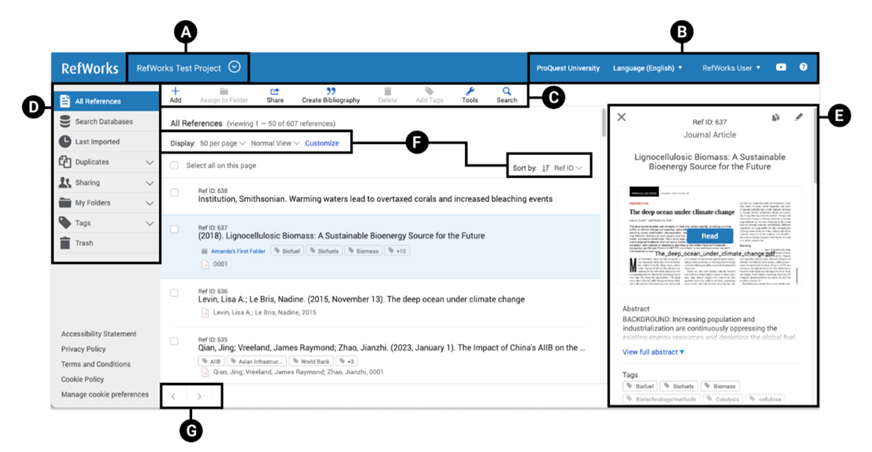
RefWorks user interface contains:
-
A: Projects
Projects allow separate reference collections to be maintained for different research efforts. -
B: Utility Toolbar
Includes institutional information and link, when enabled by Admin, language menu, user menu, and help menus. -
C: Reference and Tools Actions
Includes the main menu with various features:- Add – Opens a menu with the following actions:
- Upload document – Browse computer's files for a file to upload to RefWorks as a reference.
- Create reference manually - Type in, or copy and paste, reference details. User autofill feature to find and populate details using title, ISSN, ISBN or DOI.
- Import references from
- Word of PDF - Import references found in a list in Word or PDF
- Other file types – Upload a reference file previously exported from database, another reference management service or authorize a direct import from Mendeley.
- Assign – Add or remove the currently selected reference(s) to or from folders, or assign to another Project by copying to another Project. This can also be used to add a local copy of a reference in a shared folder to list of references. A single reference can be in multiple folders.
- Share – Opens a menu with the following actions:
- Share folder – Share references in a folder with other users.
- Move folder - Move folder, and its references to another Project.
- Copy folder - Copy folder, and its references to another Project
- Export references – Export references to computer's file system.
- Export attachments - Export attached files to computer's file system.
- Bibliography – Opens a menu with the following actions:
- Create bibliography – Create a formatted bibliography of references to copy and paste.
- Quick cite – Create citations in RefWorks to copy and paste.
- Citation style editor – Create and manage reference citation styles.
- Delete – Opens a menu with delete options which are enabled or disabled depending on the tab currently in view.
- Remove from Folder – Available when in Folder; Remove references from the folder but do not move them to Trash.
- Move Selected to Trash – Available in All References, Last Imported and Folder. Move references to Trash.
- In Trash Folder:
- Delete selected (#) – Permanently remove selected references.
- Delete all (#) – Permanently remove all references in Trash folder.
- Restore – Available in Trash Folder only – Restore deleted references to previous location and remove them from the Trash folder
- Add Tags – Add tags to selected references.
- Tools – Opens a menu with the following actions:
- Find duplicates – Find and remove duplicate references.
- Bulk edit - Perform bulk edit operations on references.
- Manage folders - Access page for easy folder navigation and management.
- Plagiarism & AI content checker - Available when enabled by institutional Admin; Online plagiarism and AI content detection tool.
- Preflight Pre-Submission Check - Available when enabled by institutional Admin; Tool to scan manuscripts for technical compliance and language quality.
- Extensions & Add-Ons - Tools and information about Save to RefWorks and writing tools integrations.
- Search & Advanced Search – Search references, notes and text in attached PFDs.
- Add – Opens a menu with the following actions:
-
D: Reference Organization
This sidebar contains tabs that provide quick access to references. These tabs are:- All References – All records available in RefWorks library except those in Trash folder.
- Search Databases – Available when enabled by institutional Admin; Open a search area to discover items in external databases.
- Last imported – References added within the last 30 days. References imported prior to last 30 day are no longer visible in this tab.
- Duplicates– Find and remove duplicate references. See last results of most recent duplicates search.
- Sharing – Shared folder(s), accept or refuse an invitation from another user, or view folders available in institution.
- My Folders – References by folder, including those that are not assigned to any folder, in current Project. A single reference can be in multiple folders. Also enables to add and manage folders.
- Tags – Search for tags and list of tags. A single reference can have multiple tags. A tag is created when added it for the first time to any reference, or if it is assigned to a reference in a shared folder. When importing references, tags can be imported, or omitted.
- Trash – Deleted references. RefWorks does not clear Trash folder automatically. References deleted from this tab are permanently removed and cannot be recovered.
-
E: Reference Details/Reference Editor
Manually create a reference, create or update a reference by using autofill feature, view, edit or duplicate the reference that is currently in focus.- Reference Details/Reference Editor pane is hidden unless a reference is in focus, or when a reference is being created.
- When configured by institutional Admin, a link appears on the reference details view and in reference editor, with Full-text or partial access to the reference within institutional library or on an external site. This is commonly known as Link Resolver.
- When available and enabled by institutional Admin, Find menu options appear: PubMed, Crossref lookup, Unpaywall, search: Related PubMed articles, More by author in PubMed, Google Scholar, DOI. Unpaywall link appears for references where DOI is present and located in the Unpaywall database. Depending on reference in Unpaywall, link will offer a new webpage with information or start PDF download.
- Related articles, if enabled by institutional Admin - available only for Ref Type: Journal Article; view and import recommended articles.
- Attachments: when multiple attachments are present, scrolling is enabled.
- When the reference has a full text PDF attachment Read link is visible to read the PDF in a reader.
- When the reference has a non-PDF attachment, Download link is visible.
-
F: Display Options
The following display options are available:- Display: number of references per page; limited to 2000.
-
View: Type of view used for the page.
- Normal - common view of reference information.
- Table - view references in a table format.
- Full - see reference details without opening reference preview panel.
- Citation - see references formatted according to chosen citation style, with visual indicators where detail(s) may be required, but populated.
-
Customize: What to display/hide on the page. Applies to Normal and Full views only.
- Folders - see which folders references are assigned to; folder tiles are links to folders.
- Tags - see what tags are assigned to reference; tag tiles are links to search for references with tag assignment
- Sort order: Ascending or Descending
-
Sort by: Define what data to sort on.
- Date added
- Date modified
- Date published
- Title
- Author
- Ref ID
-
G: Pagination Buttons
Enables navigation between the pages.