IMPORTANT: If an institution has multiple administrators, the last setting saved by any admin is applied.
Contact Support or Account Manager if Admin privileges need to be updated or reassigned.
Admin Pages
Institutional admins have access to pages to control institutional settings and access user information. Admin pages are accessed by selecting Admin from the user menu.
- Users – Manage users. See Managing Users.
- Settings – Configure institution-wide settings. See Configuring Institutional Settings.
- Account Creation – Customize the options available to users in institution. See Account Creation and Invite Users.
- Analytics – View information about usage. See Usage Analytics.
Account Creation
- Authorizing institutional email domains: Users can create an account on Account Creation page using their institutional email address. To add or remove authorized email domains, contact Tech Support.
- Using a unique URL and access code, which are included in Welcome Letter.
To inquire about unique URL or access code, or if changes are needed, contact Tech Support.
Do not post the access code publicly as it allows access to anyone with link and code. - Send an invitation to users via the in-app Invite Users feature – recipients receive an email with a registration URL.
- SSO (Single Sign-on) set up, using Shibboleth or OpenAthens SAML 2.0 authentication. To set up SSO at institution refer to Single Sign-On configuration.
When users create an account, they select a Role and Area of Focus. These can be updated at any time from the user Settings page. Admins can customize the options that are available to users in their institution.
Customizing Roles and Areas of Focus
Click on Account Creation tab.
Current options are displayed by default. Click on Select from available roles to choose which items to add to list.
Or, type in item names in the textbox or delete to remove.
Click Save.
The lists defined in the Account Creation section are reflected in the User Settings and in the Admin Analytics.
Managing Users
Manage users and invitations in the Users area.
Manage Users
View user's status: Enabled, Disabled, Enabled/Admin, Disabled/Admin.
Using the Actions menu in a specific row, assign or revoke Admin privileges or enable or disable a user.
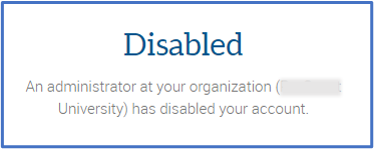
When disabled user logs in, they will see a screen notifying them their account is disabled:
If multiple users are selected, page actions become available in the Actions menu at the top of the table.
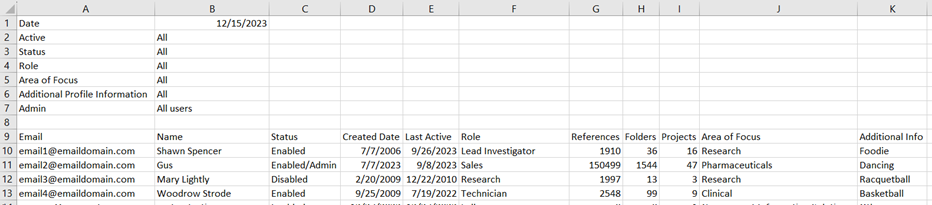
To export the list of users in CSV format, click Download while on Users tab. The following information is exported:
- Email address.
- First name, if provided.
- Last name, if provided.
- Role, if provided.
- Created – date the account was created.
- Status:
- Enabled: user access is unrestricted.
- Disabled: user access is restricted by an Admin.
- Enabled/Admin: user access is unrestricted, with Admin privileges.
- Disabled/Admin: user access is restricted, with Admin privileges; when the user is again enabled, Admin privileges will persist.
- Last Active – date the account was last accessed.
- Area of Focus
- Additional Profile Information, if configured.
- Folders – includes folders created by user and folders created by another user in the same project; does not include folders shared with the user.
- References – includes references created by the user, references created by another user in the same project, and references in trash; does not include references in folders shared with the user.
Invited tab
Click on Invited tab.
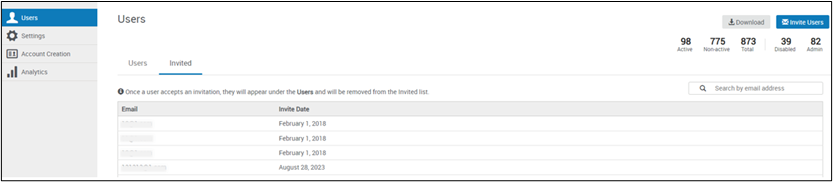
View list of email addresses and dates of sent invitations.
Emails in list are not yet registered users. These can be managed only once they are registered and appear under the Users tab.
Invitations which have been accepted and an account was created, will no longer be listed under the Invited tab. Those users can be managed under Users tab.
Invitations which have not yet been accepted and an account has not been created, will remain under the Invited tab until an account is created.
Invite Users
Click on the Invite Users button.
Follow the on-screen instructions. Personal message text may be edited.
Click Invite Users.
Configuring Institutional Settings
Click on Settings tab.
- Institution Information
- Institution name
- Institution URL (Institution Website Link)
- Link Resolver
- Link Resolver Label – Enter a label for the link resolver.
-
Link Resolver URL– If institution subscribes to a link resolver service, Configure the link resolver URL if one is available. If URL is not configured, the Link Resolver Label will not appear.
Link resolver label in Reference prevew pane
- WAYFless Login - Only available when Single Sign-On (SSO) is configured. Enables users to directly access their accounts via the institutional login (if they are signed in to their institution's website), bypassing the login screen.
- Preferences
- Full-text sharing - Enables/disables whether users can share full-text references with users outside organization. Sharing with other users inside organization is always allowed. When disabled, this option is hidden.
- Search Databases - Enables/disables whether the Search Databases option appears in the Reference Organization area for users at institution.
- Sync with Dropbox - Enables/disables whether users can synchronize their full-text references with Dropbox.
- bX Recommender - Enables/disables whether users at institution can access bX Recommender feature to find related articles.
- Find options - Enables/disables each Find option. When all options are disabled, the Find menu will be hidden on the Reference Details and Reference Editor panes
- PubMed links
- DOI search link
- Unpaywall link - link appears only for references where the DOI is present and located in the Unpaywall database
- Crossref link
- Google Scholar link
- Plagiarism and AI content checker - Enables/Disables whether users at institution can access Plagiarism and AI Content checker feature.
- Preflight Pre-submission Check - Enables/disabled whether users at institution can access Preflight checker in writing tools.
-
Citation Styles for My Institution – List of default bibliographic styles available in the Recent Styles menu when creating a bibliography or choosing a style in Citation View. Up to six styles can be set. These styles appear under Recent Styles for new users.
Admin - Citation Styles for My Institution -
Additional Profile Information – This an optional setting. Adds a custom drop-down field displayed to users during account creation. When configured, these are required fields. At least two possible answer choices must be listed.
Admin - Additional Profile Information -
Profile Creation Message – add text that displays on a user's Profile Creation page.
Admin - Profile Creation Message
After making any change on this page, click Save.
Share Personal Citation Styles as Institutional Styles
Admins can share personal custom citation styles as an institution styles.
While editing the style (see Managing, Editing and Creating Citation Styles), click Share with my institution in the Options menu in Citation Style Editor. Other users at institution can now use and/or duplicate the style.
To stop sharing a style, click Options > Stop sharing with my institution.
Analytics
Usage Analytics
Total page views and sessions in a specified period.
May be viewed by day or month for a preset time period, or customized. Information is aggregated anonymously, and no user filters are available. Historical (prior to March 2023) Pageview and Session reports are available in Admin Usage Analytics for download only.
The full 12 months of data, starting March 2023 and after, is available through in-app graphs and as a download.
- A page view is counted each time a user moves to another page of the website or refreshes a page.
- A session is a visit to the website, regardless of activities completed; a session can include multiple page views.
References Added
Metrics may be filtered by Role(s), Area(s) of Focus and Additional Profile Information (where configured). May be viewed by day or month for a preset time period, or customized.
References which were deleted by user after adding are not included in the trend.
Accounts Created
Metrics may be filtered by Role(s), Area(s) of Focus and Additional Profile Information (where configured). May be viewed by day or month for a preset time period, or customized.
Accounts which were deleted by user after creating are not included in the trend.
Publications
Metrics may be filtered by Role(s), Area(s) of Focus. May be viewed by a preset time period. References which were deleted by user after adding, citing, reading or viewing are not included in the total.
- Publications Added – Publications added most often to accounts at institution.
- Publications Cited – Publications most frequently cited in writing tools for Word and Google Docs at institution.
- Publications Read – Publications with full text most often read by users at institution.
- Publications Viewed – Publications whose metadata was most often viewed by users at institution.